What's new on NeetoForm Help


image

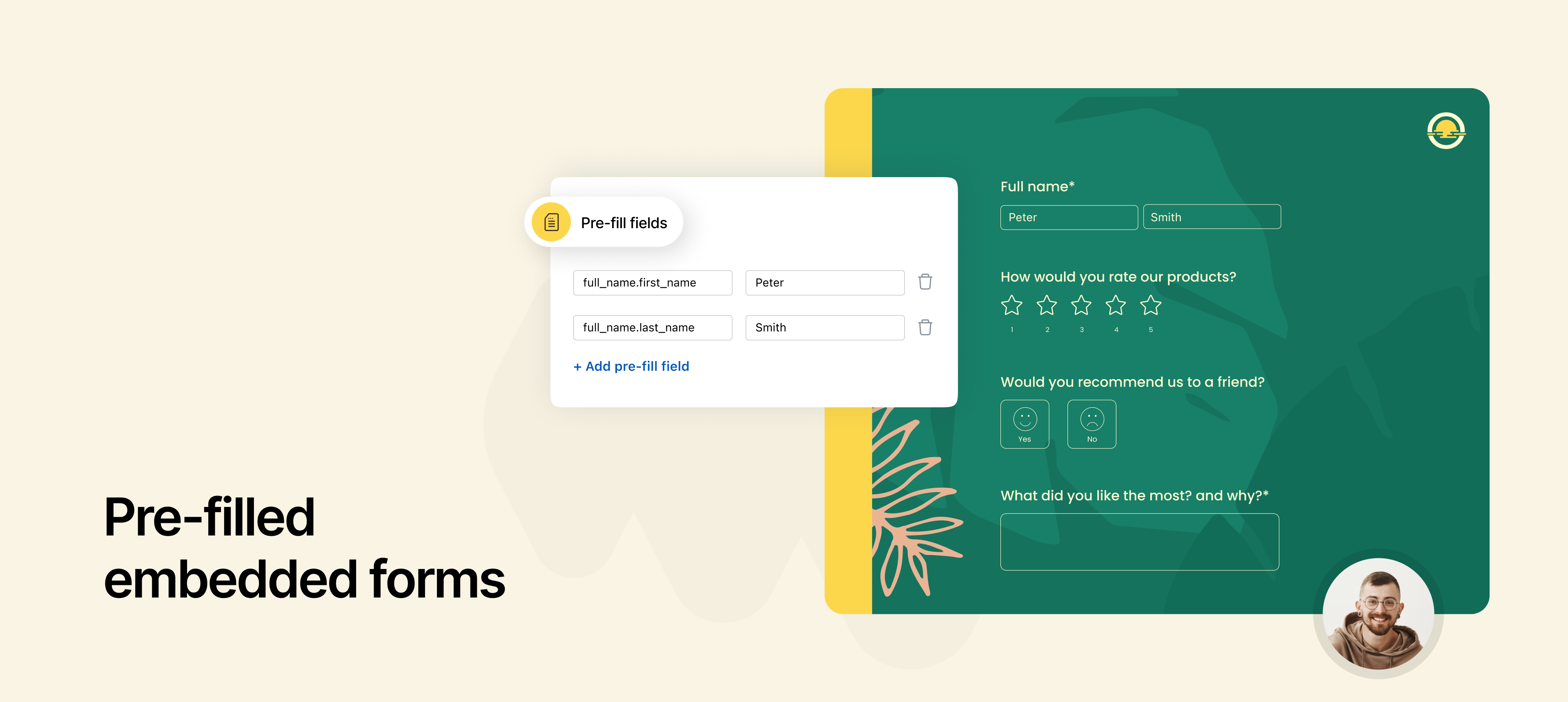
We've made your form submissions faster, easier, and error-free with our new Pre-filled Embedded Forms feature. Now, when you embed a NeetoForm on your website, you can automatically fill in specific fields with predefined values.

What this means for you:

  • Saves time: Users spend less time typing, reducing friction and drop-offs.

  • Minimizes errors: Ensure essential information (like an event name or user ID) is correct every time.

  • Better user experience: Forms feel more personal and intuitive, as users see relevant data pre-selected.

For example, instead of making attendees manually select the event name from a long list, you can now embed a form that already has the correct event pre-selected. This ensures registration verifies that attendees are signing up for the right event.

To learn how to use this, refer to this help article.

The email field now supports OTP verification to help ensure data quality and reduce spam submissions.

This verification process requires respondents to confirm their email before submitting the form, effectively preventing:

  • Spam submissions.

  • The use of fake or random email addresses.

  • Entry errors in contact information.

This ensures the emails you collect are valid and reachable.

To learn how to use this, refer to this help article.


Product list

Sagar Anadkat
image

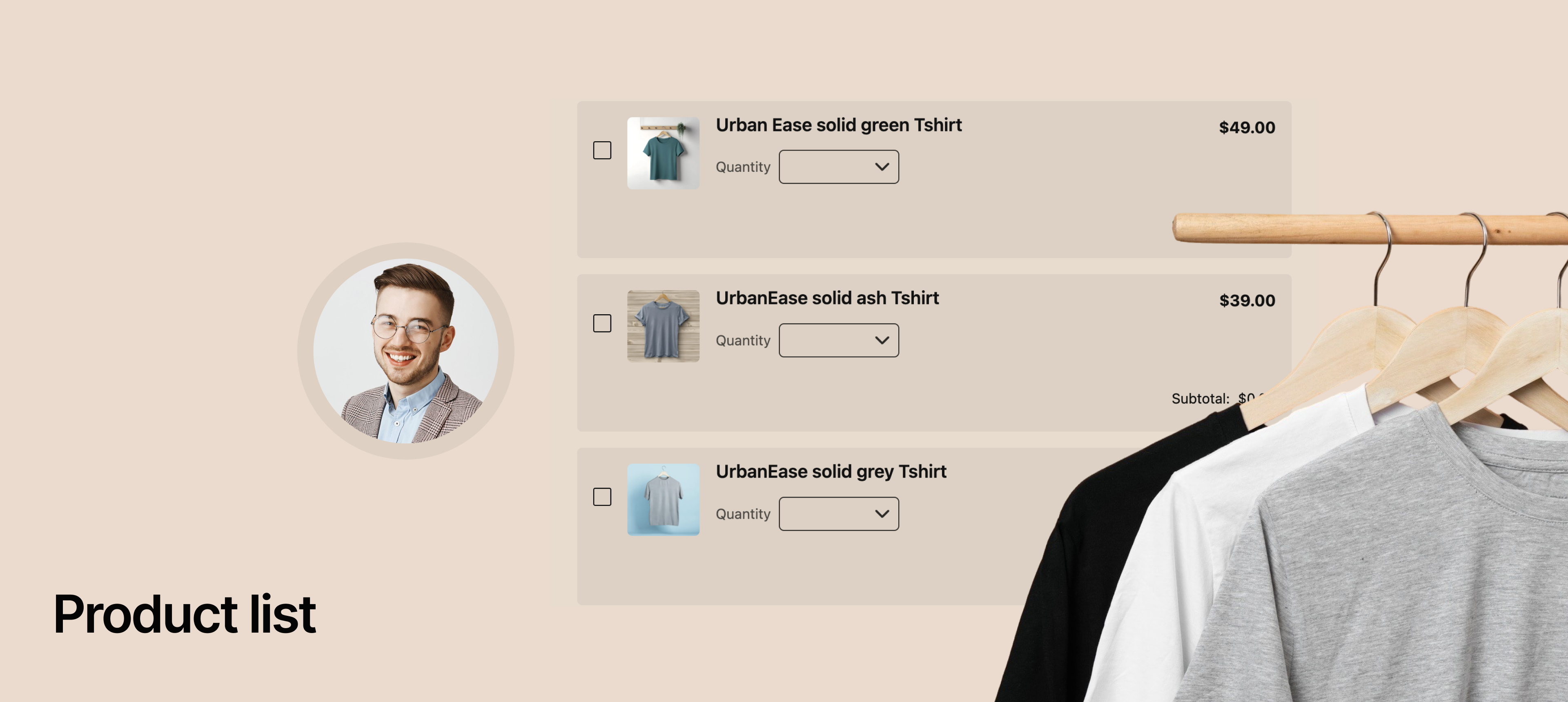
We've added Product List feature, allowing you to easily set up simple online stores or sophisticated order forms directly within your NeetoForm.

Now, your customers can select products, choose custom options, adjust quantities, and see their total cost all before seamlessly moving to payment.

How this help you

  • Sell directly: Start taking orders for your physical or digital products without needing a separate e-commerce website.

  • Simple ordering: Create order forms for catering, custom services, or group purchases (e.g., uniforms, event tickets).

  • Instant totals: Give your customers a clear, immediate view of how much their order costs.

Example: You can use this to create a complete bakery cake order form, allowing customers to choose cake size (option), specify flavor (option), add a special note, and pay the final price right away. View the example form here

What's Included in the Product List

  • Add products: Easily list your items with a name, description, image, and price.

  • Product options: Create choices for your products, like different sizes (Small, Medium, Large) or colors (Red, Blue, Green) for a t-shirt.

  • Custom option pricing: Set different prices for specific options. For example, a "Large" size can automatically cost more than a "Small" size.

    • (Note: For now, you can set special pricing for one type of option on a product, and it will apply to all others for simplicity.)

  • Quantities: Give customers the ability to select how many of each item they want using a simple dropdown or text box. You can set limits (minimum/maximum) on quantities.

  • Automatic calculations: The form instantly calculates the subtotal for each item and the grand total for the entire order.

  • Currency and payments: Select your preferred currency, and the calculated total will be automatically passed to your connected payment gateway (like Stripe or Razorpay) for quick and easy checkout.

To learn more about this feature, check our help article.


Gmail integration to send emails

Announcement Sagar Anadkat

We've added Gmail integration to NeetoForm to help you keep your brand consistent and professional.

By default, all notification emails, like email notifications after submitting a response, verification emails via OTP and emails from automation rules are sent from neetoform.outbound@neeto.com. This generic sender can feel impersonal to your clients and may not accurately reflect your brand.


With this new feature, you can now:

  • Connect your Gmail account to NeetoForm.

  • Send all emails (to you and your form submitters) directly from your own domain via Gmail.

  • Improve email deliverability and build trust with a recognisable sender address.

This integration helps you create a more professional experience, especially for consultants and coaches, event organizers, HR teams, and service providers.

To know more about how to use this feature, read our help article.


Apply tax to payments

Harshita Singh
image

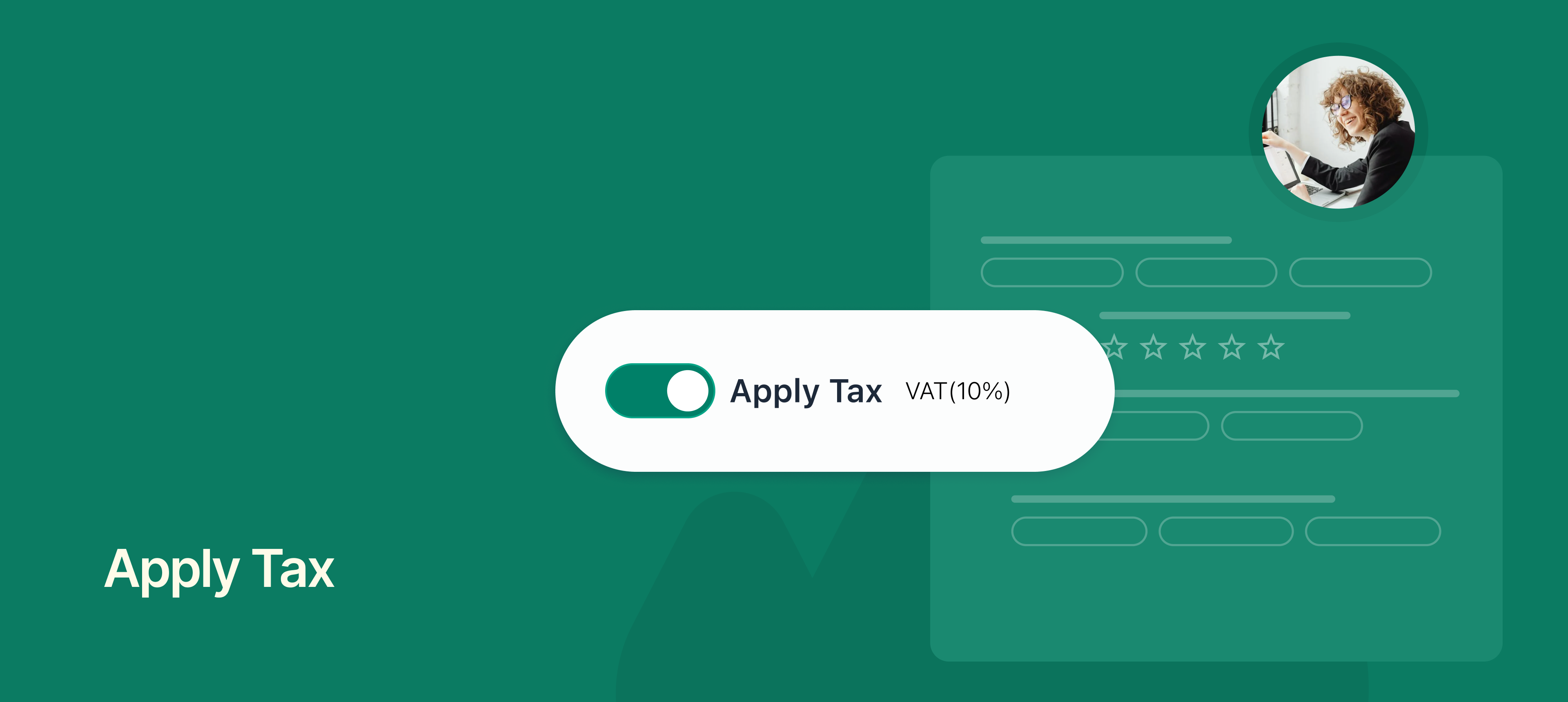
You can now easily add taxes to your payment-enabled forms in NeetoForm. When someone fills out your form and makes a payment, the applicable tax will be calculated automatically and included in the final amount.

This makes the payment process smoother and ensures the total amount paid is accurate. The tax amount will be clearly shown to the form submitter on the form, so they know exactly what they’re being charged.

To know more about how to use this feature, read our help article.


In our earlier update, we introduced the option to create multiple Thank you pages in NeetoForm. This gave you the flexibility to show different thank you messages based on the conditions of how someone filled out your form, making the experience more personal and relevant.


But we noticed there wasn’t a way to delete the irrelevant or unused Thank you pages. Now, you can delete any thank you page you no longer need. This gives you better control and helps keep your form setup clean and organized.

To know more about how to use this feature, read our help article.


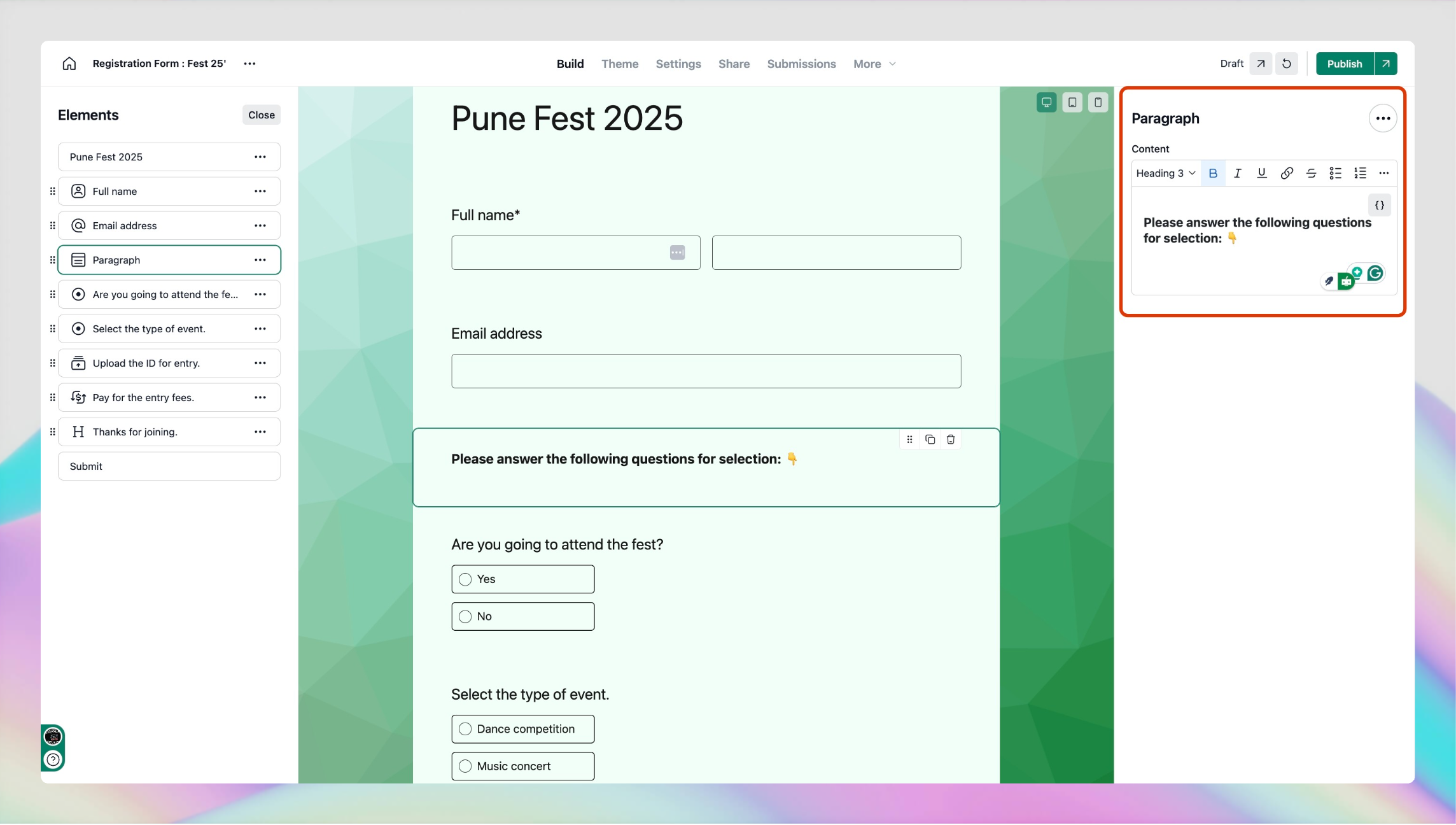
We’ve added a new Paragraph field to NeetoForm that lets you add read-only text to your forms. This means you can now include static content, such as instructions, notes, or any important information, that you want form submitters to read but not edit.

screenshot (8).png

It’s a great way to guide form submitters through the form by providing extra context or clarifying details next to the questions. Since it’s a read-only field, users won’t be able to change it; it’s just there to help them understand what’s needed.


To learn more about how to use this feature, read our help article.


NeetoForm now supports text-based calculations, not just number-based ones. This means you can create fields that display a specific message automatically, based on how form submitters fill out your form.


For example, if someone takes a quiz through your form and scores above a certain mark, you can set it up to show a custom message like “Congratulations, you passed with fyling colors!” right away or if they don't score well, you can show "Looks like you need to study a bit more. Better luck next time!"

You can also use it for things like showing personalized feedback, instructions, or follow-up messages depending on the answers.


This update makes your forms more interactive and dynamic, helping you provide a better and more personalized experience.


To learn more about how to use this feature, read our help article.


NeetoForm now lets you create multiple Thank You pages, and what’s even better — you can choose which one to show based on how someone fills out your form.


This means instead of showing the same message to everyone, you can customize the message depending on their answers. For example:

In a feedback form, you can show a message based on the form submitter’s rating like if they give 5 star then you can show, "Glad you had a great experience!", however for low rating you can show a message like “Sorry to hear that. Please share how we can improve.”

Similarly, if it’s a job application form, you can show a message based on whether they qualify or not.

This feature helps you create a more personalized and meaningful experience for your form submitters, making them feel heard and improving your response handling.

To learn more, read our help article.